

Offstage gives your AI agent
its own Mac screen.
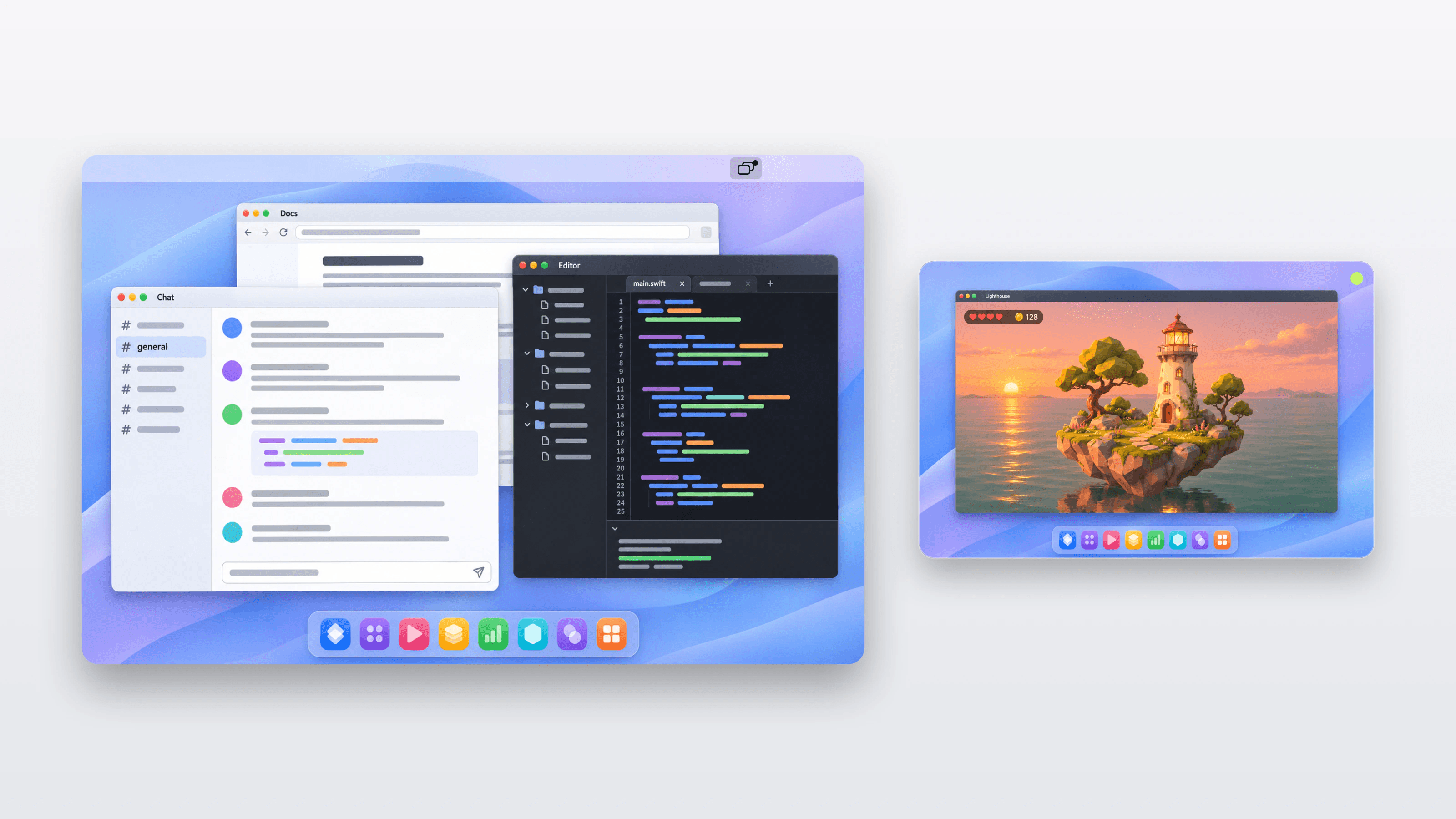
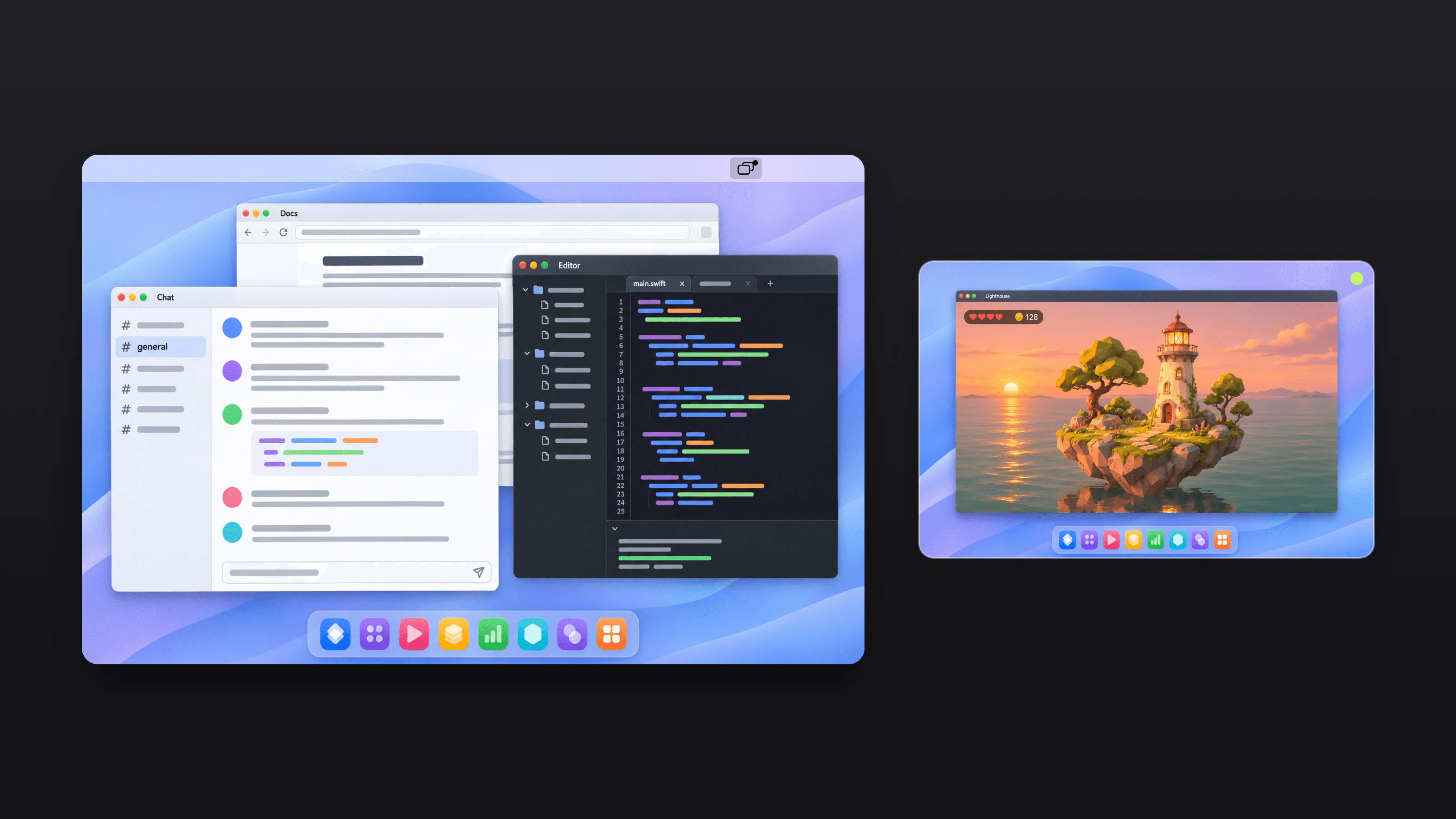
Your agent opens and tests your apps on a screen of its own, out of sight. Your pointer and keyboard stay yours.
Drag Offstage into Applications, then open it. The first time, choose Open Anyway in System Settings › Privacy & Security.
For Mac computers with Apple silicon and macOS Sonoma or later.
How it works
What happens when your agent uses Offstage.
- Your agent asks for a screen. Offstage makes a virtual one that you never see.
- It opens an app there. Any Mac app works. Offstage mutes it when the app allows.
- It clicks and types inside that app. Never with your pointer or your keyboard.
- Offstage checks every step. It reports what actually happened, and says why when something fails.
- When it’s done, the screen goes away. Offstage quits only the apps it opened.
The menu bar
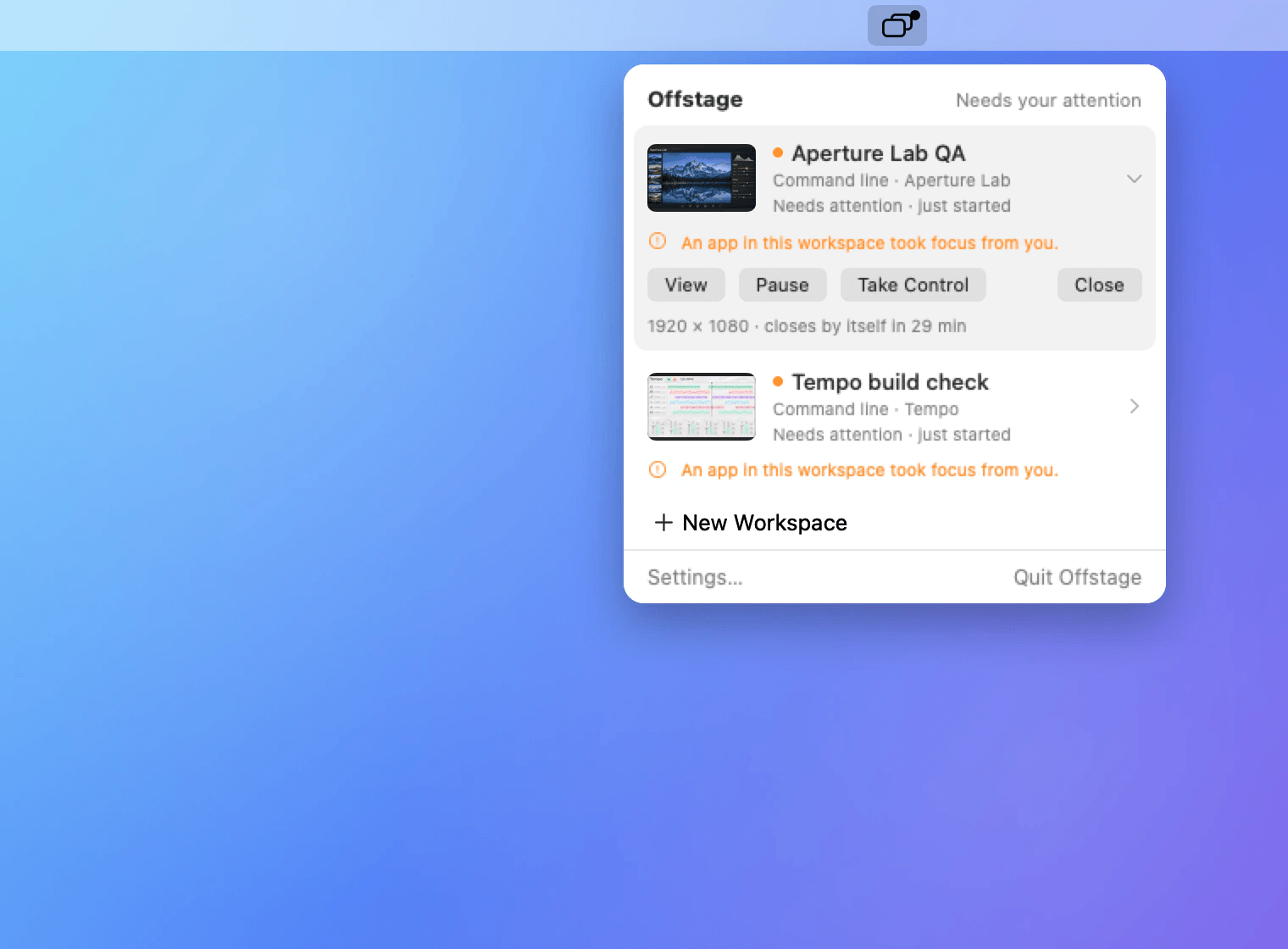
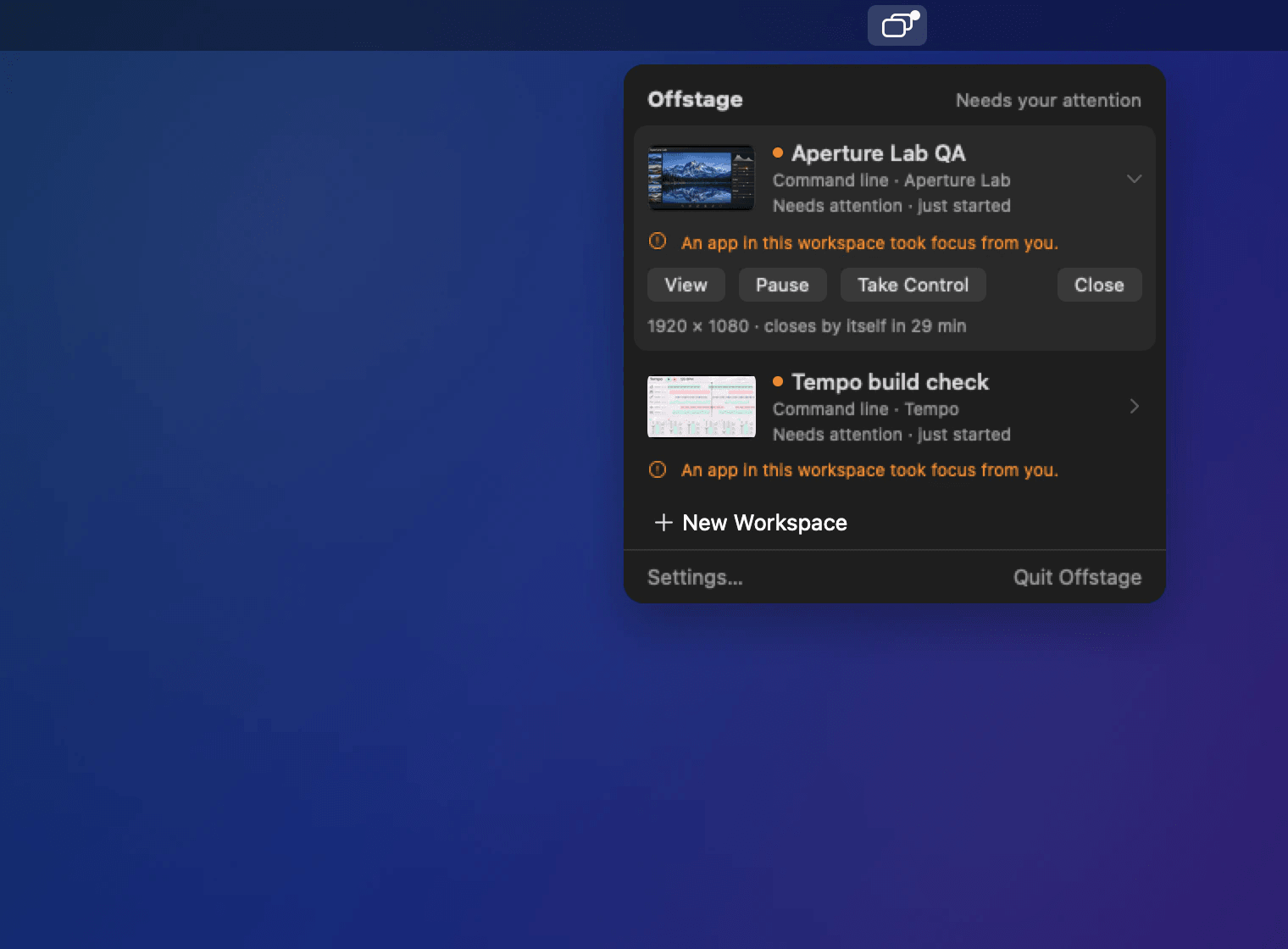
You can see which agent is working, on what, at any time.
See every workspace, which agent started it and what it’s running.
If an app jumps in front of you, Offstage puts your window back and tells you.
The live view
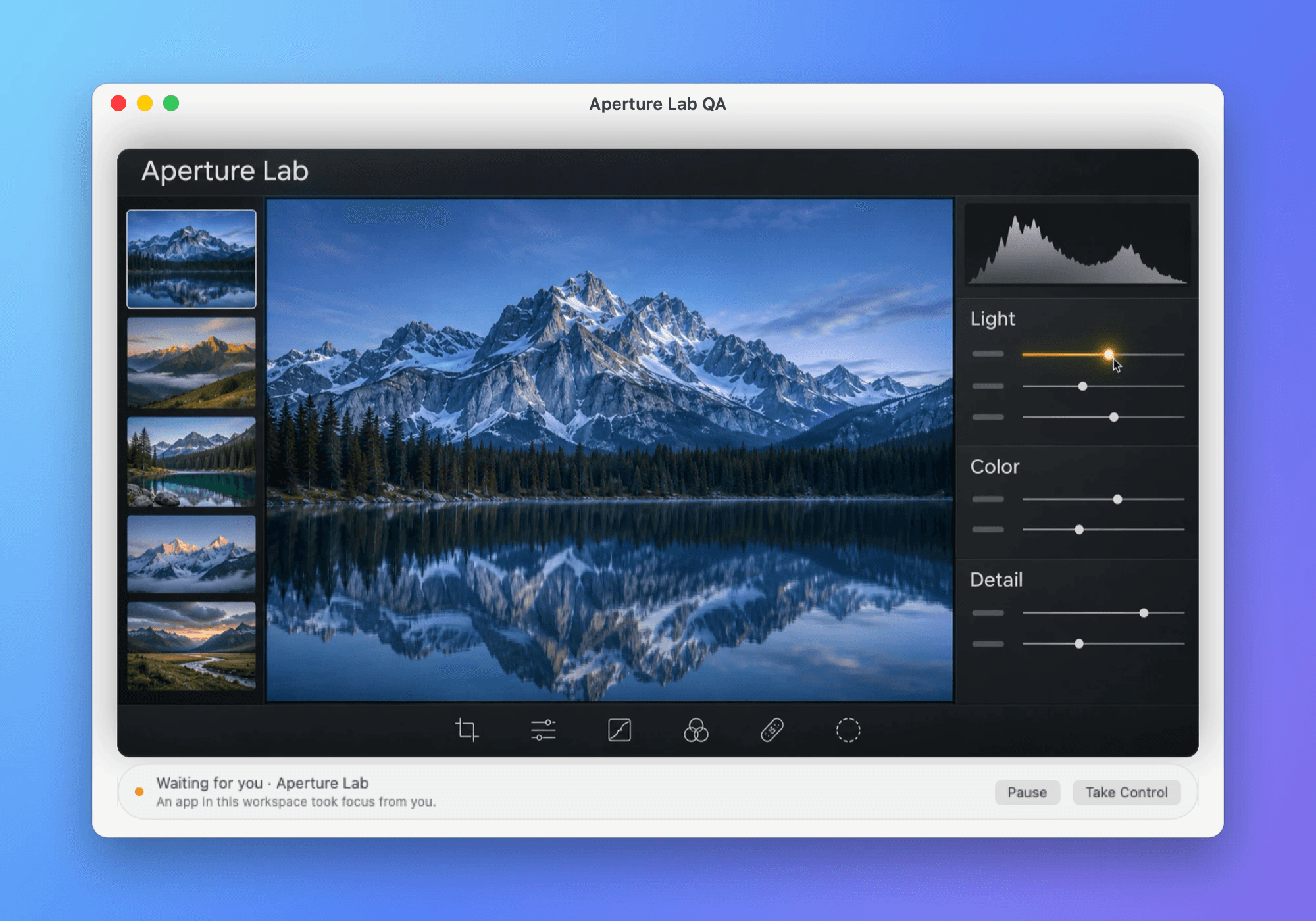
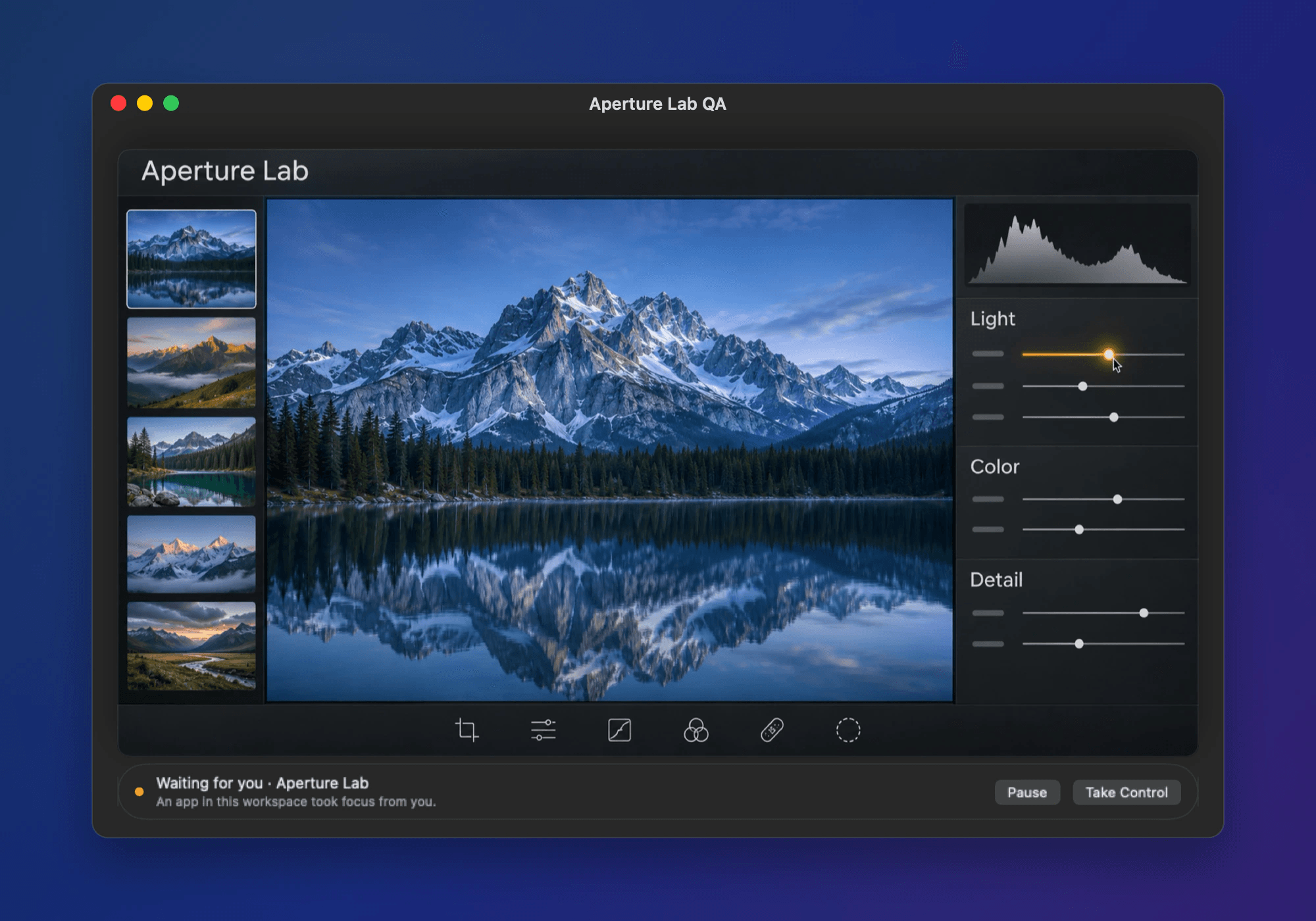
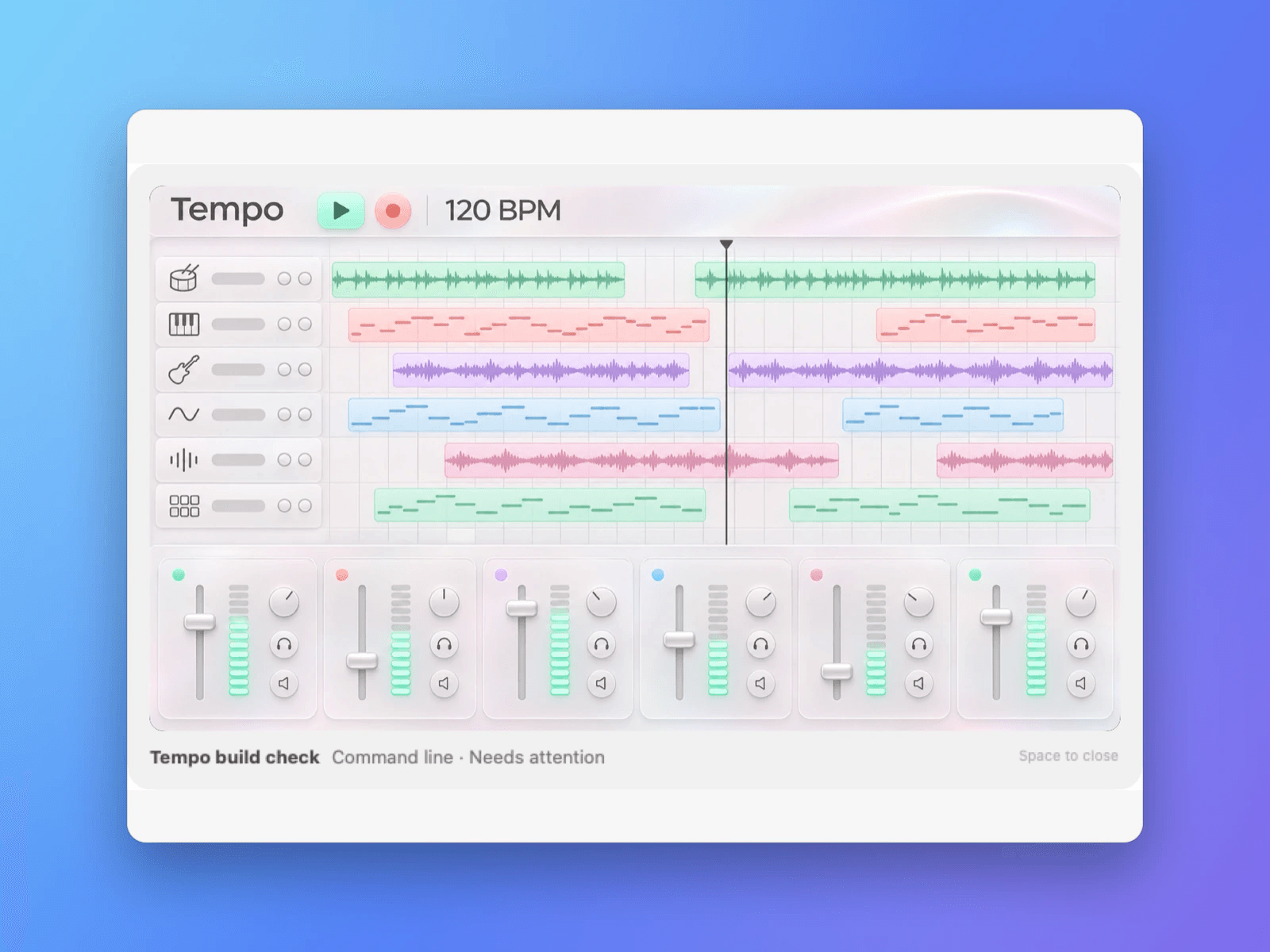
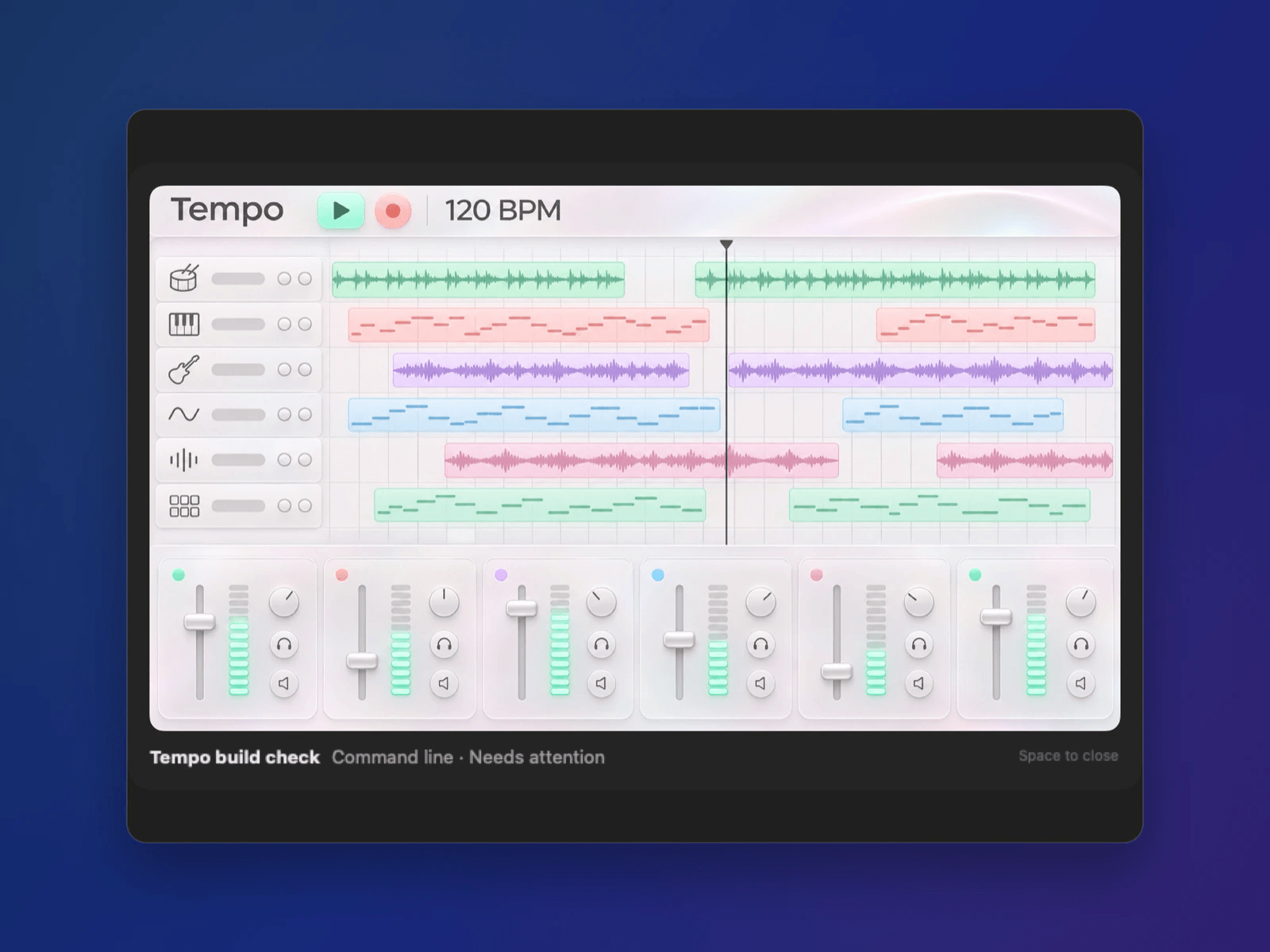
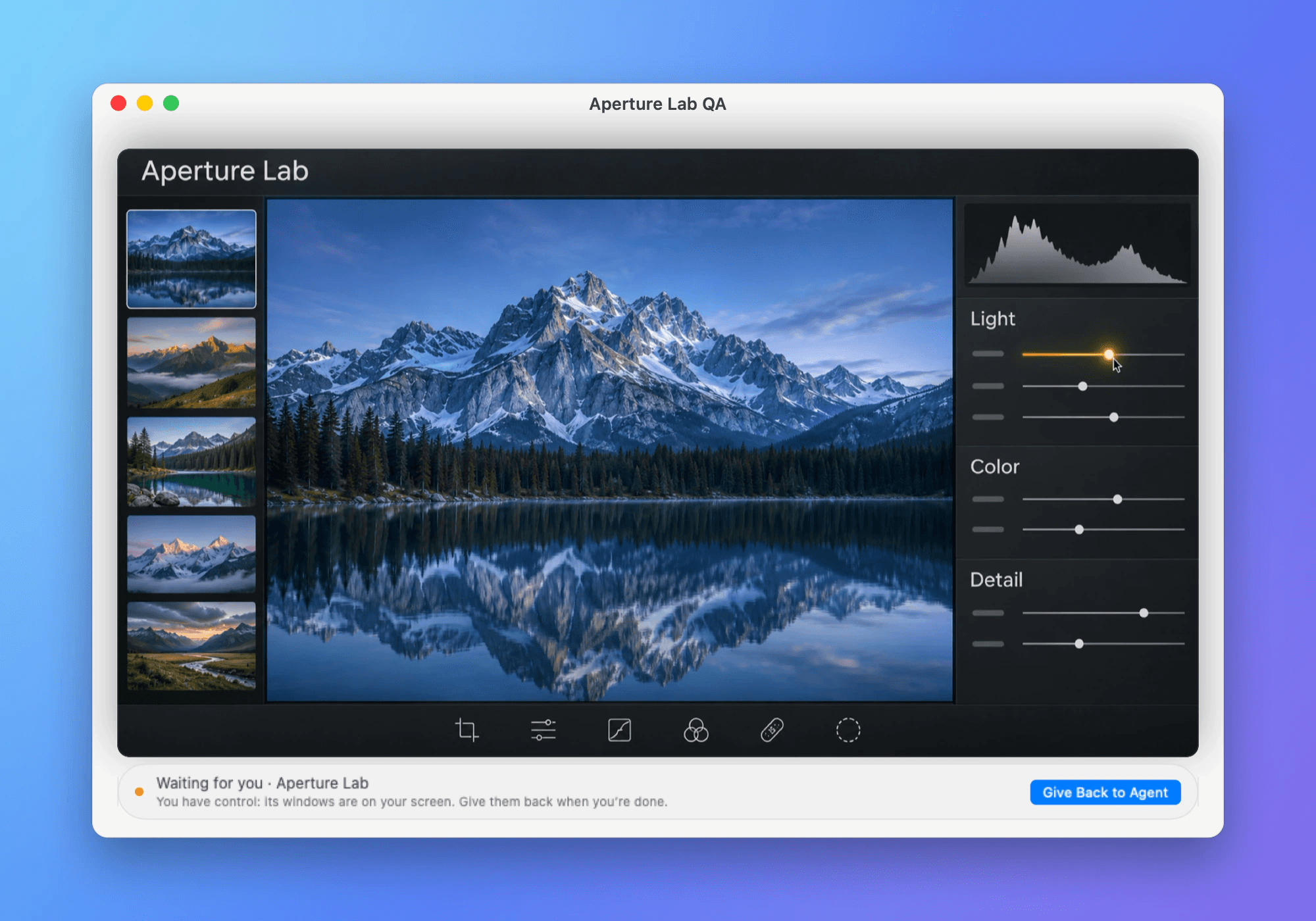
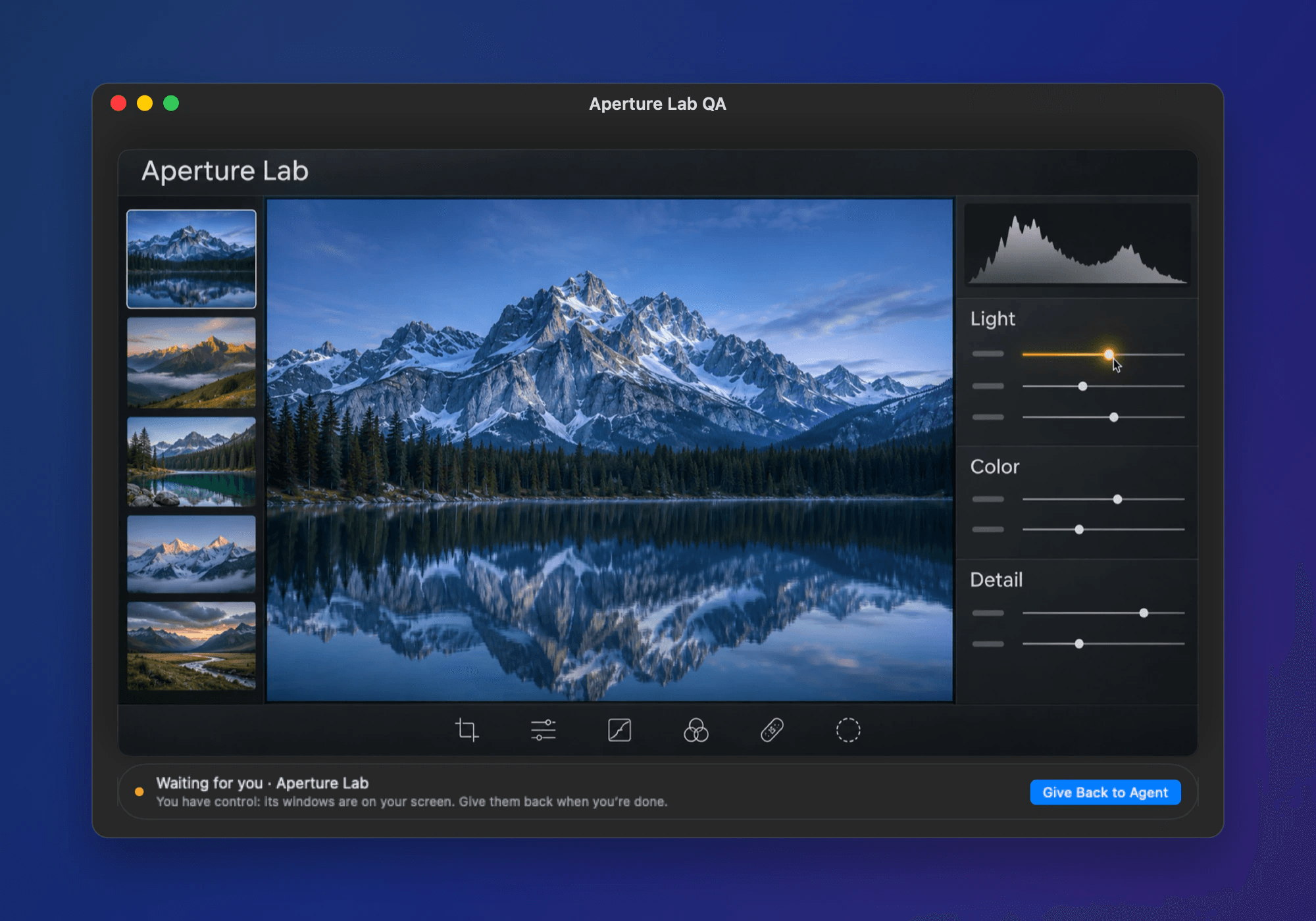
Watch your agent’s screen without touching it.
See exactly what your agent sees. Your clicks never reach it. Press Space for a quick look.
AI native
Just ask your agent.
Offstage works with Claude Code, Codex, Cursor and any agent that supports MCP. Connect it once during setup, then ask in plain words.
Your agent opens the app out of sight, clicks and types by label, checks each result and closes up when it’s done.
Use Offstage to test sign-up in my app. Create an account called Test User and check the welcome screen says “Welcome, Test User”. Keep it off my screen.
# Claude Code, using Offstage
$ offstage open "MyApp"                 ✓ opened offstage
$ offstage click "Sign up"              ✓ confirmed
$ offstage type "Name" "Test User"      ✓ confirmed
$ offstage click "Create account"       ✓ confirmed
$ offstage assert "Welcome, Test User"  ✓ confirmed
$ offstage done ✓ closed- MCP34 tools, ready for any MCP agent.
- Command lineThe same features in one
offstagecommand. - Clear resultsEvery step says whether it worked, and why not.
Setup
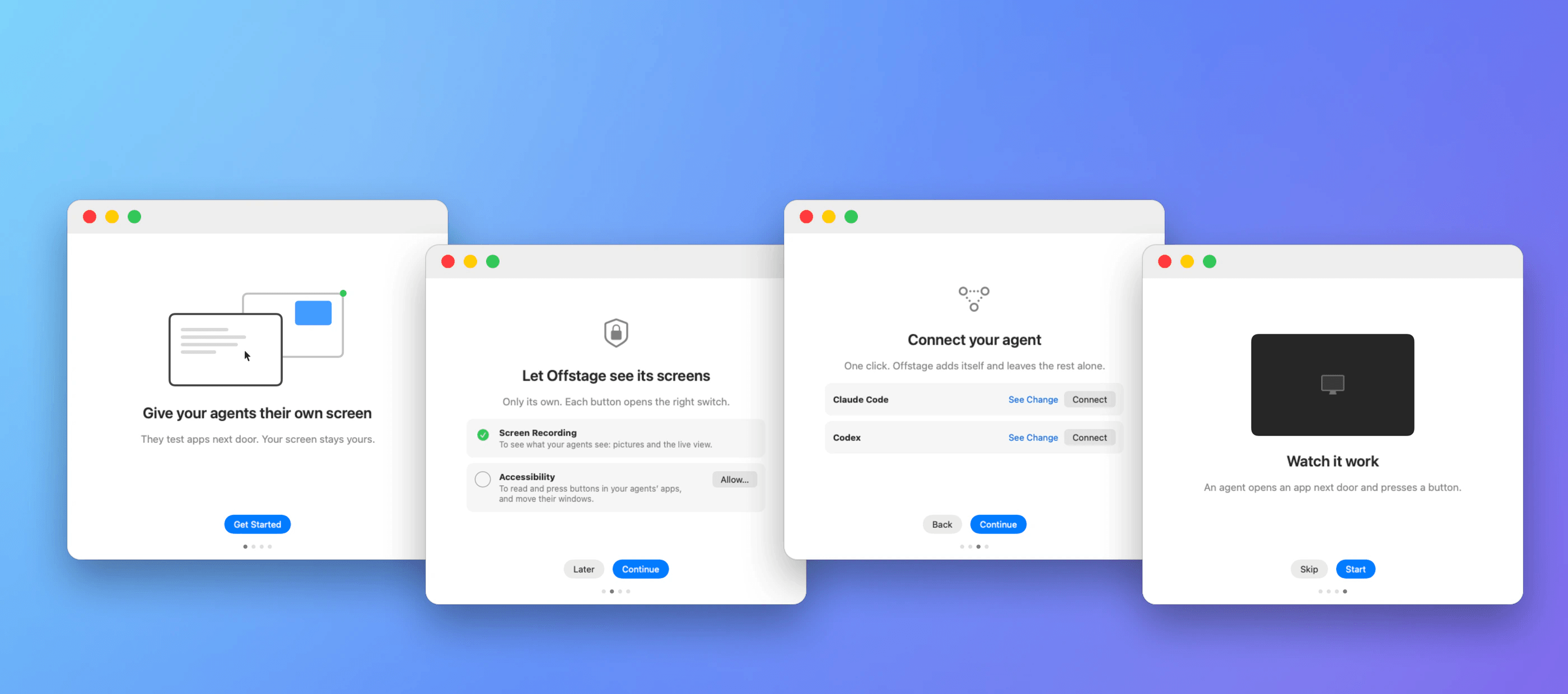
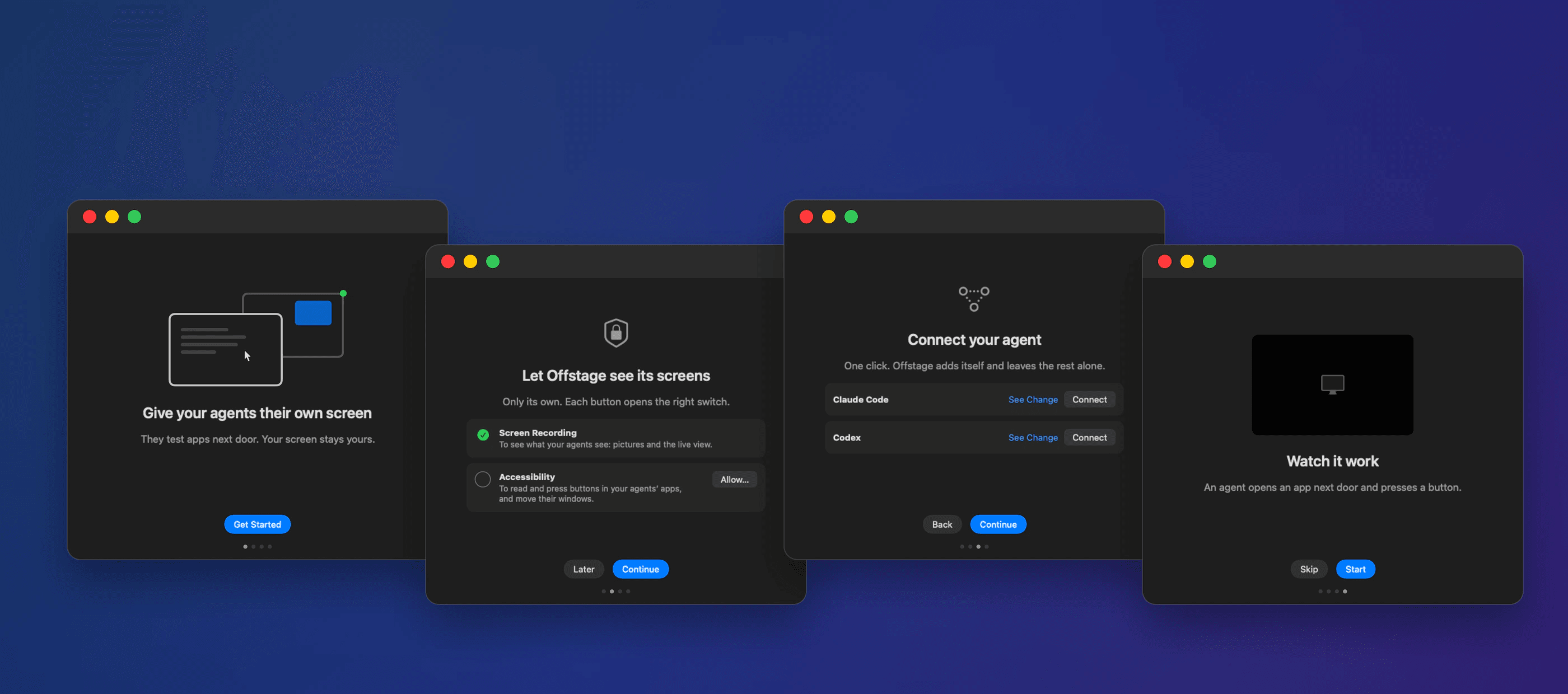
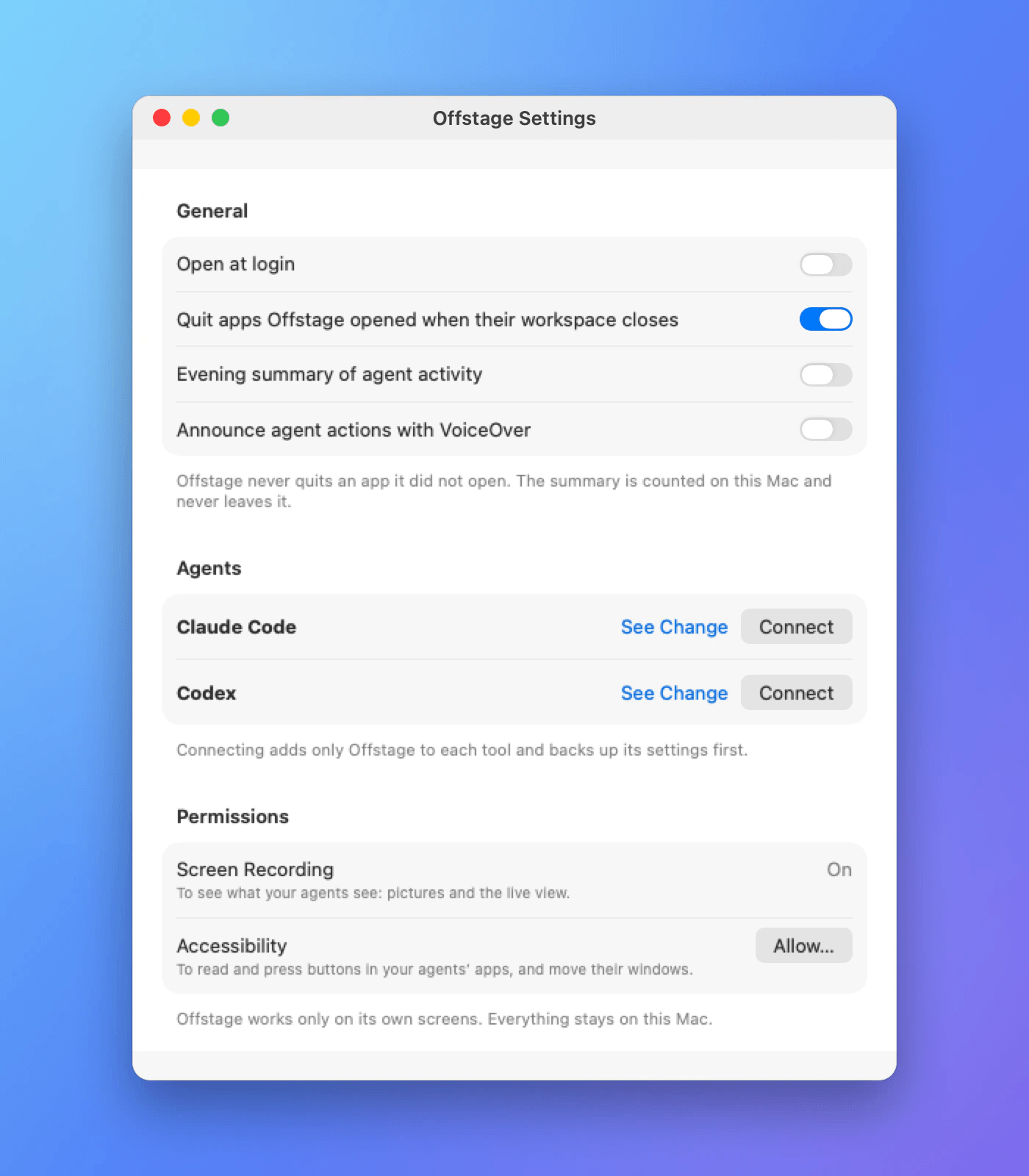
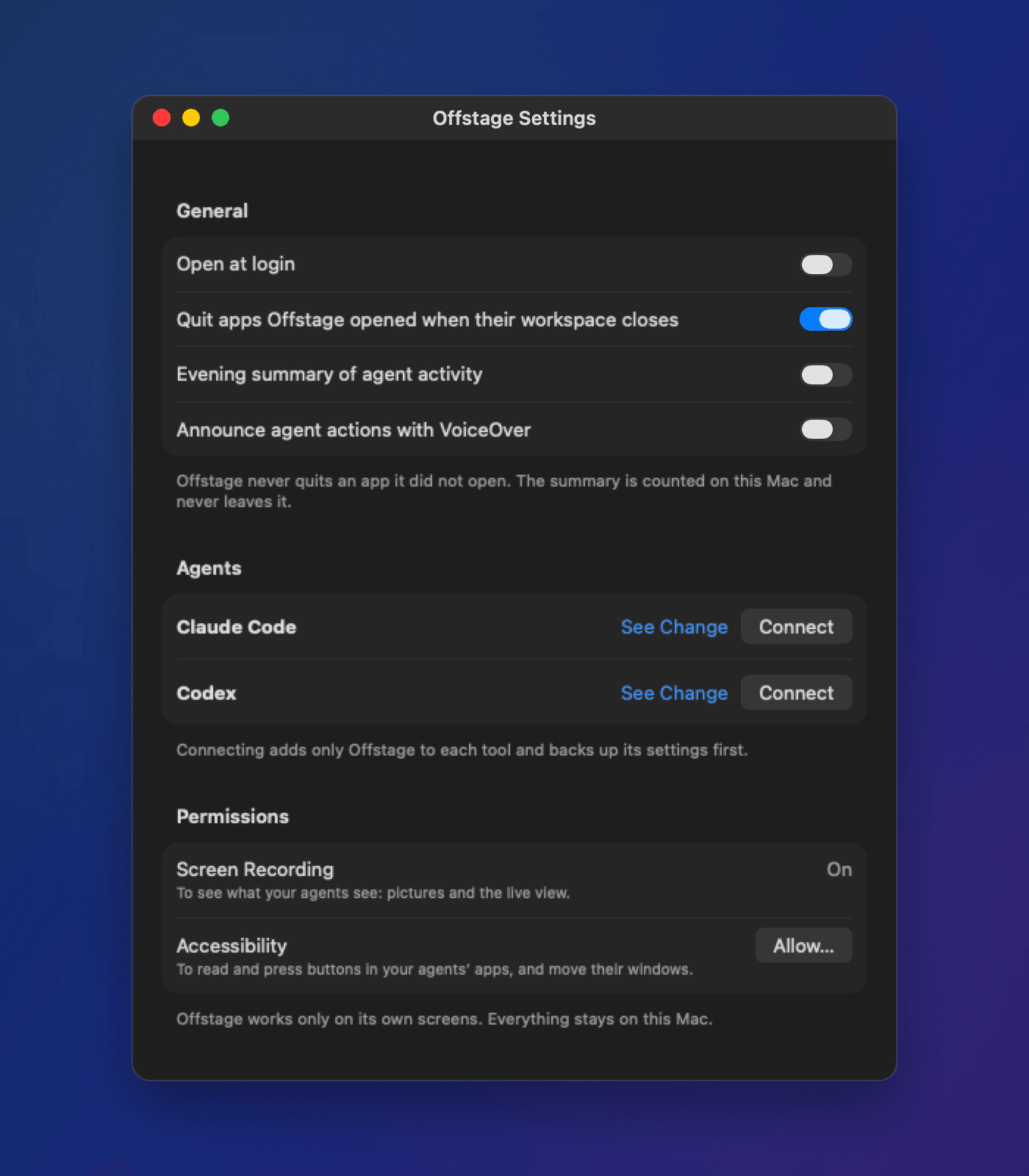
Four screens, then a test on your own Mac.
Grant two permissions, connect Claude Code, Codex or Cursor in one click, then watch a quick test run.
Measured
3.7 MB. No CPU when idle.
| App size | 3.7 MB |
|---|---|
| Memory when idle | 8.4 MB |
| Processor use when idle | None |
| An agent connects in | 8 milliseconds |
| A new screen is ready in | Under a second |
Measured on a Mac with an M4 chip.
Privacy
Your work stays on your Mac.
No account. No analytics. No telemetry. Once a day, Offstage checks for updates and sends nothing about your Mac. You can turn this off in Settings.
Questions
Can an app still take my focus?
For a moment. Some apps jump to the front when they open. Offstage puts your window back and tells you in the menu bar.
Is it a sandbox?
No. Apps run as you, with your files and network. Offstage keeps them off your screen, not out of your Mac.
What do I need?
A Mac with Apple silicon and macOS Sonoma or later. Offstage asks for Screen Recording, to see its own screens, and Accessibility, to use apps on them.
Which agents work with it?
Any agent that supports MCP, including Claude Code, Codex and Cursor. There’s also a command-line tool.
Will it be on the Mac App Store?
No. The App Store doesn’t allow virtual displays or controlling other apps, so Offstage is downloaded from this site.
Which apps does it work with?
Any Mac app: browsers, games, editors, design tools and your own builds.
Let your agent test on its own screen.
Download Offstage for Mac (2.1 MB)
Drag Offstage into Applications, then open it. The first time, choose Open Anyway in System Settings › Privacy & Security.